
The user guide.
The free plugin first, then Archivum Pro.
User guide (v2.0.0)
Archivum Inactive Archiver gives you a place to put plugins you have switched off but are not ready to delete.
The three states
Archiving never changes a plugin's files or its settings in the database.
Where the archive is
The archive folder is wp-content/archived-plugins- followed by twelve random characters, for example wp-content/archived-plugins-3f9a1c0b7d2e. The characters are chosen once for your site and never change. The Archived Plugins screen shows the exact name in its first line.
The name differs from site to site so that an outsider cannot guess the address of an archived plugin's files. See "Web access to the archive" below.
If you archived plugins with a version before 1.3.0, they are in wp-content/archived-plugins. That folder is renamed for you the first time you open the Archived Plugins screen or archive, restore or delete a plugin. If file changes are disabled on the site, it stays under the old name and keeps working.
Archive a plugin
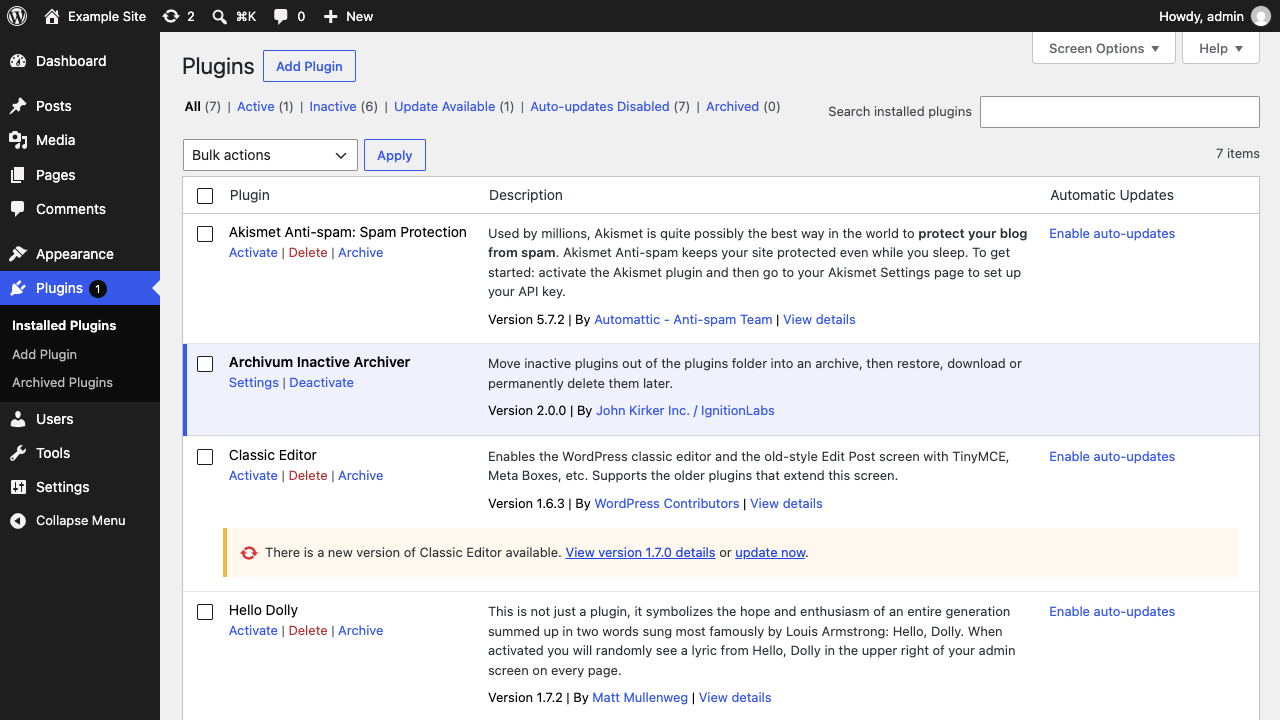
- Go to Plugins.
- If the plugin is active, Deactivate it. Active plugins have no Archive link.
- Click Archive under the plugin name.
To archive several: tick them, choose Archive from Bulk actions, click Apply. Any that are still active are skipped and listed in a message.
See what is archived
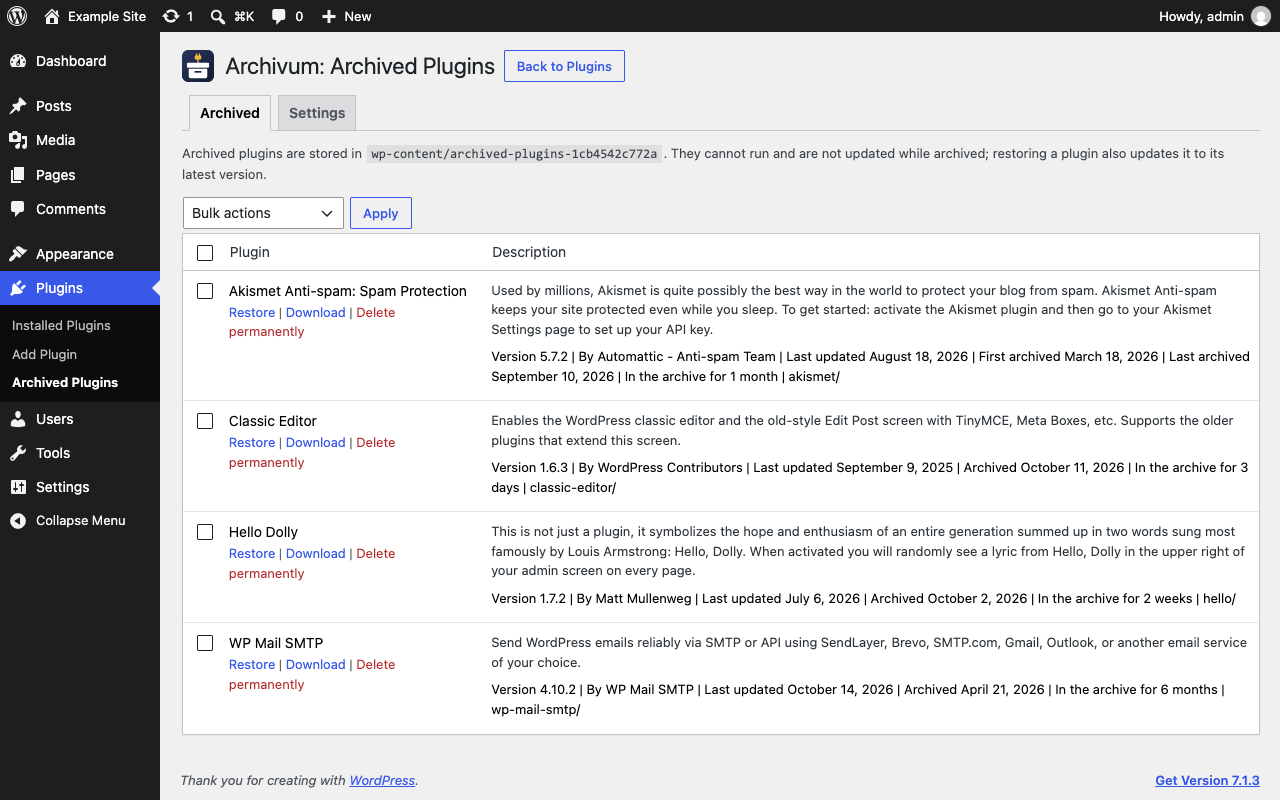
Plugins → Archived Plugins, or the Archived (n) link beside All / Active / Inactive.
Each row shows the plugin's name, description, version and author, then:
- Last updated: when its files were last changed on this site, which is usually when it was installed or last updated. Archiving does not change this.
- Archived, or First archived and Last archived if it has been archived, restored and archived again on different days. Restoring keeps the first date; deleting permanently forgets it.
- In the archive for: how long it has been there since it was last archived.
- Its folder name.
Use these to decide what to delete: a plugin that has not been updated for years and has sat in the archive for months is unlikely to be needed.
Download a plugin
Click Download under an archived plugin to get it as a zip. It can be installed again on any site with Plugins → Add Plugin → Upload Plugin. Do this before deleting anything you might want later. Only the plugin's own files are included. Download is offered to users who may delete plugins, and works up to 200 MB.
Restore a plugin
Click Restore. The plugin returns to the Plugins screen, inactive.
If it has a newer version, it is updated straight away, using WordPress's own updater, and the message says which version it is now on. This needs permission to update plugins and can be turned off in the settings. At most five plugins are updated per restore; if you restore more at once, the message names the ones still to update from the Plugins screen. If a plugin skipped several versions while it was archived, read its changelog before activating it: most plugins make their database changes on activation. Plugins that get updates from somewhere other than wordpress.org (most commercial plugins) usually check for them with their own code, which does not run while they are archived. Those are restored as they were; update them from the Plugins screen. If an update is found but cannot be installed, the message says so.
If you have since reinstalled the same plugin, restore is refused so nothing is overwritten. Delete one of the two copies first.
Delete permanently
Click Delete permanently and confirm. The archived files are removed. This cannot be undone. The plugin's database settings, if any, are left as they are — the plugin's own uninstall routine does not run, because the plugin is not installed. To remove them too, restore the plugin and delete it from the Plugins screen, which runs its uninstall routine; Archivum Pro's Clean up and delete does that in one step.
Settings
Plugins → Archived Plugins → Settings, or Settings under the plugin's name on the Plugins screen. One setting: Update a plugin to its latest version when it is restored, on by default.
Site Health
Tools → Site Health includes a check that the archive folder cannot be reached over the web. It is critical if the server serves the archive's files; see "Web access to the archive" below.
Archivum Pro
Archivum Pro is a separate, paid add-on from the same authors. It needs this plugin, and adds, on the same screen:
- automatic archiving of plugins inactive for a period you choose, and automatic deletion of plugins archived for a period you choose, always announced a week ahead and only after someone has seen the announcement;
- email reports;
- Clean up and delete, which runs a plugin's own uninstall routine before deleting it;
- flags for plugins closed or abandoned on WordPress.org;
- an Activity tab;
- wp archivumWP-CLI commands and two more Site Health checks.
Nothing in this plugin is locked or limited without it.
Messages you may see
Who can do what
Good to know
- Updates. Archived plugins are invisible to WordPress, so they are not updated and do not count towards the update badge. They are updated when you restore them, unless you turn that off.
- Multisite. When archiving from Network Admin, deactivate the plugin on every site first: the Network Admin screen only knows about network-wide and main-site activation.
- Deactivating or deleting Archivum Inactive Archiverleaves your archived plugins on disk. Reactivate or reinstall it to see them again; it recognises its archive folder. You can also move folders from the archive folder back towp-content/pluginsby FTP.
- Backups.Check that your backup tool includes the archive folder if you want archives backed up. If it was set to includewp-content/archived-pluginsby name before 1.3.0, point it at the new name.
- Web access to the archive.The plugin writes rules that block web access to the folder on Apache, and a rule file for IIS. nginx ignores them, as does Apache when the host has switched overrides off. The Archived Plugins screen requests a file in the folder from your own site and warns you if it is served; if so, ask your host to block every address beginning/wp-content/archived-plugins(on nginx:location ^~ /wp-content/archived-plugins { deny all; }). A rule written for the exact old address/wp-content/archived-plugins/no longer matches after 1.3.0 and needs the same change. The random folder name is a second line of defence for servers where the block is missing: the files are still reachable by anyone who learns the name, so fix the block and do not rely on the name.
- Do not edit the files in the archive folder's top
level..htaccess,web.configandindex.phpare managed by the plugin and rewritten if they change.
- Disk space. Archives are not compressed.
Upgrading from an earlier version
From 1.2.4 the plugin is distributed as Archivum Inactive Archiver in the folder archivum-inactive-archiver. Version 1.2.3 used the folder inactive-archiving-system; 1.2.0 to 1.2.2 used the name Archive Inactive and the folder archive-inactive; 1.0 and 1.1 used archive-inactive-plugins. They are separate plugins as far as WordPress is concerned:
- Deactivate the old plugin. Do not run both at once: they share a screen.
- Install and activate Archivum Inactive Archiver.
- Delete the old plugin.
- Open Plugins → Archived Plugins. Everything you archived before is listed.
If you are still on 1.1, do not archive a single-file plugin such as Hello Dolly. It moves your entire plugins folder. If that has already happened, use FTP or SSH to move the plugins folder inside the archive folder back to wp-content/plugins.
Archivum Pro user guide (v1.0.2)
Archivum Pro adds automation, clean-up and reporting to the free Archivum Inactive Archiver plugin, on the same Plugins → Archived Plugins screen. Everything the free plugin does (archive, restore, download, delete, update on restore) is described in its own user guide.
Install and activate
- Install and activate the free Archivum Inactive Archiver (2.0.0 or later) from wordpress.org. Pro does nothing without it, and says so on the Plugins screen.
- Uploadarchivum-pro.zipwithPlugins → Add Plugin → Upload Pluginand activate it. On multisite, network-activate both.
- Click License under Archivum Pro on the Plugins screen, or open Plugins → Archived Plugins → License. Paste the key from your purchase email or your account at inactivearchiver.com and click Activate license. A green message confirms it; if the key is refused, a red message says why (for example "License not found"). Activating sends the key and this site's address to inactivearchiver.com.
Until the license is active, Pro's features are off and the Plugins screen says so. Once it is active, the License tab shows when it runs until, Check license now asks the store and shows its answer, and Deactivate license on this site frees the activation so the key can be used on another site.
When a license expires, Pro keeps working, but updates (including security fixes) and support stop until it is renewed. A reminder with a Renew button appears on the Plugins and Archived Plugins screens; Remind me in two weeks hides it for you for two weeks. A license that is refunded or disabled switches Pro's features off.
Updates arrive through the Plugins screen like any other plugin's. Each one is checked before it is installed: it must carry a valid signature from John Kirker Inc. and match its checksum, or it is refused.
Abandoned plugins
Once a week, a few plugins a day, each archived plugin's folder name is looked up on WordPress.org. Plugins that have been closed there, or have had no release for two years, are flagged, since they are unlikely to be safe to bring back. Plugins in a single file, and plugins that get updates from somewhere else (premium plugins usually do), are not looked up. Turn this off in Settings → WordPress.org status.
Archive automatically
Open Plugins → Archived Plugins → Settings, or click Settings under Archivum Pro on the Plugins screen. Pro's settings appear below the free plugin's.
- Archive automatically. Tick it and choose a period in days, weeks or months (a month is 30 days). It is off until you turn it on. Once a day, every plugin that has been inactive for longer than the period is archived.
- When the clock starts. The plugin notes when each plugin is deactivated. Plugins that were already inactive when you installed this version count from that day. A restored plugin starts again from the day it was restored, so it is not archived again straight away.
- Inactive plugins table. Shows every inactive plugin, since when, and when it is due. Tick Never archive automatically for any you want to keep where they are, such as a maintenance-mode plugin. They can still be archived by hand.
- Email report. On by default. After a daily check that archived or deleted something, or found plugins due for deletion within a week, a list is emailed to the administration address, or to the address you enter. You are also told if something could not be archived or deleted (once, not every day).
The daily check uses WordPress's scheduled tasks, which run when someone visits the site. On a quiet site it can run a few hours late.
Clean up and delete
Deleting an archived plugin removes its files. Its settings, and any database tables it created, stay behind, because WordPress only removes those by running the plugin's own uninstall routine: an uninstall.php file in the plugin, or an uninstall hook it registered when it was last activated.
If an archived plugin has one, its row offers Clean up and delete (also in Bulk actions). That puts the plugin back in the plugins folder and deletes it the way the Plugins screen does, which runs the routine. The routine that runs is the version you archived; the plugin is not updated first. You are asked to confirm first.
If a plugin has no uninstall routine, nothing can clean up after it reliably: there is no record of which settings are its own. Its documentation may say what to remove by hand.
Delete automatically
In Settings → Automatic deletion:
- Delete automatically. Tick it and choose a period (180 days unless you change it). Plugins that have been in the archive for longer are deleted permanently by the daily check. It is off until you turn it on.
- Confirmation. To turn on automatic deletion, or running uninstall routines, tick the box confirming that deleted plugins can only be recovered from a backup. Back up first, and try it on a staging copy.
- A week's notice, always, and it must be seen. A plugin due for deletion is announced in the email report and in a notice on the Plugins and Archived Plugins screens that cannot be dismissed. It is deleted no sooner than a week after the email was sent to the administration address (or to a user who may delete plugins), or the notice was shown to someone who may delete plugins. An email to any other address is still sent, but does not start the week. If the email fails and nobody logs in, nothing is deleted. Turning this on with old archives therefore deletes nothing for at least a week. Restore a plugin, or tick Never delete automatically next to it, to keep it.
- Clean up. Optionally run each plugin's uninstall routine before deleting it, as Clean up and delete does. It is off by default because the code runs unattended and may come from an old version of the plugin. If a routine stops the daily check, you are told, the plugin is left alone from then on, and it may be back on the Plugins screen, inactive, for you to delete.
- What is never deleted automatically. Folders that are not recognised as plugins, and anything you tick.
- The Archived plugins table lists each archived plugin, since when it has been archived, when it is due, and whether it has an uninstall routine.
Activity
The Activity tab lists what was archived, restored, updated, downloaded and deleted, and settings changes, newest first: when, which plugin, and who. Automatic runs show as "Daily check", and commands as "WP-CLI". The latest 500 events are kept.
Site Health
Tools → Site Health includes the free plugin's web-access check and two from Pro:
- whether the daily check has run in the last two days, when automation is on;
- whether any plugins are about to be deleted automatically.
WP-CLI
wp help archivum <command> explains each. Deleting needs --yes.